How to Enforce BitLocker Encryption Types on Windows 11 Drives

BitLocker is a tool that keeps your computer data safe. It ensures that only you can get to your files. Any new files you create on a drive using BitLocker will also be protected.
You can protect external, fixed, and operating system drives using BitLocker drives. When you turn on BitLocker for your main drive, it automatically unlocks the drive at startup using a TPM chip.
When users turn on BitLocker for fixed data drives, BitLocker asks them to pick an encryption type. You can choose full encryption or used space-only encryption. Full encryption locks the entire drive. Used space-only encryption only locks the parts of the drive that actually hold your files.
You can use the Enforce drive encryption type on fixed data drives policy setting to control how this works on your fixed drives.
Enforce Drive Encryption Type on Fixed Data Drives
You can force a specific encryption choice for fixed drives using the steps below.
Method 1: Using Local Group Policy Editor
Why: This method lets you set one rule for everyone using the computer.
What happens: BitLocker will use the setting you choose automatically. Users will not see a choice during setup.
1. Search for “Edit group policy” in the Start menu and open it. ⚠️ Admin privileges required.
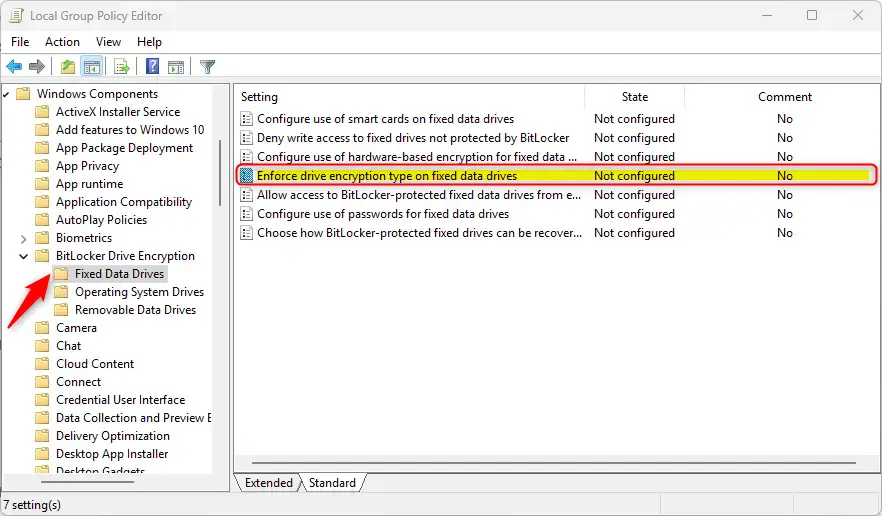
2. Navigate through these folders:
- Computer Configuration
- Administrative Templates
- Windows Components
- BitLocker Drive Encryption
- Fixed Data Drives
3. In the right window, double-click “Enforce drive encryption type on fixed data drives.”
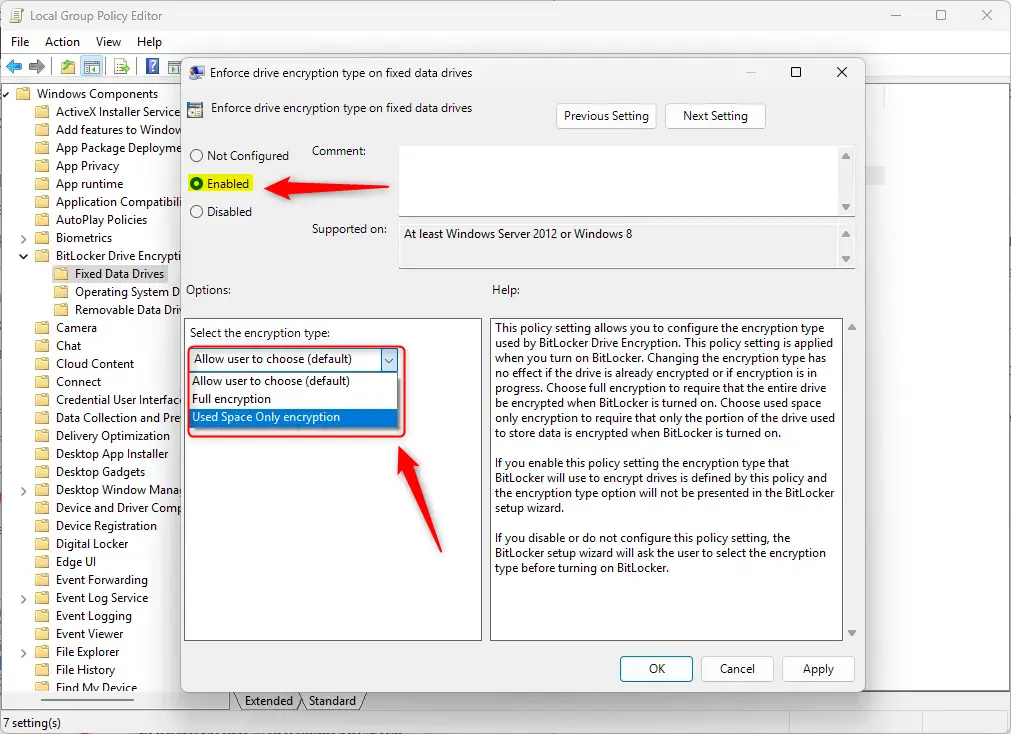
4. Choose your setting:
- Not Configured: This is the default. It works the same as Disabled.
- Enabled: BitLocker will use the type you pick. Users won’t be asked to choose. Select “Full encryption” to lock the whole drive or “Use Space Only encryption” to lock only the data area.
- Disabled: The setup wizard will ask users to pick their own type.
5. Click OK and restart your computer to finish. ⚠️ Admin privileges required.
Method 2: Using Windows Registry Editor
Why: Use this if you cannot access the Group Policy Editor.
What happens: The computer saves your preference in the registry. BitLocker will check this whenever you turn it on.
1. Open the Start menu, type regedit, and run it as an administrator. ⚠️ Admin privileges required.
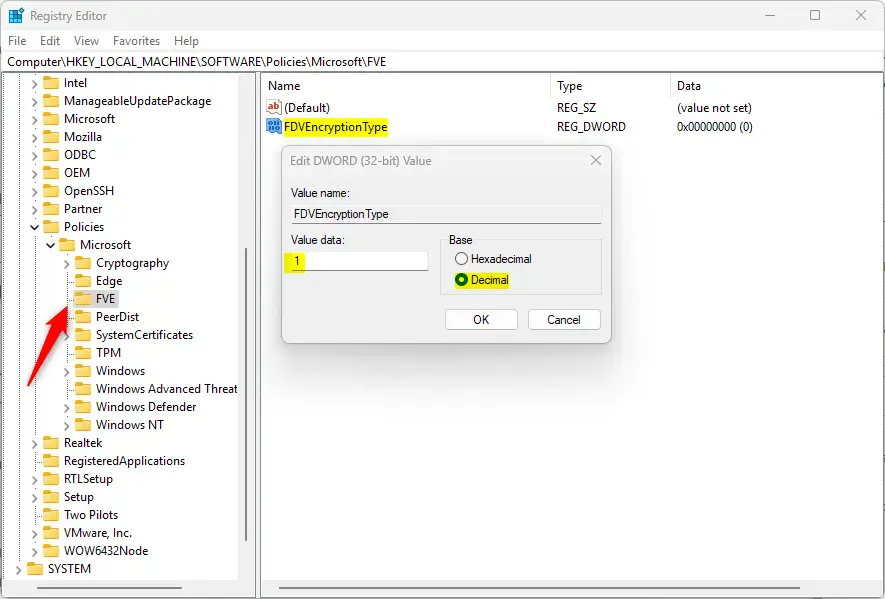
2. Go to this path: Computer\HKEY_LOCAL_MACHINE\SOFTWARE\Policies\Microsoft\FVE
3. Look for a value named FDVEncryptionType on the right. If you don’t see it, right-click an empty space, select “New,” then “DWORD (32-bit) Value,” and name it FDVEncryptionType.
4. Double-click the value and enter:
1for full encryption.2for used space-only encryption.
5. Click OK and restart your computer. ⚠️ Admin privileges required.
How to Remove the Encryption Type Setting
If you want to let users choose their own settings again, simply delete the FDVEncryptionType item you created in the registry and restart your computer.
Summary
BitLocker keeps your data secure by locking your drives. You can force a specific encryption style so that users do not have to make a choice during setup. You can do this through the Local Group Policy Editor or the Registry Editor. Both methods require admin rights and a computer restart to work. To undo these changes, delete the registry setting or set the policy back to its default state.
What is BitLocker encryption and how does it work on Windows 11?
How can I enforce a specific BitLocker encryption type on fixed data drives?
What are the differences between full encryption and used space-only encryption in BitLocker?
Can I configure BitLocker settings using the Windows Registry?
What happens if I set the 'Enforce drive encryption type' policy to Disabled?
Was this guide helpful?



Leave a Reply Cancel reply